
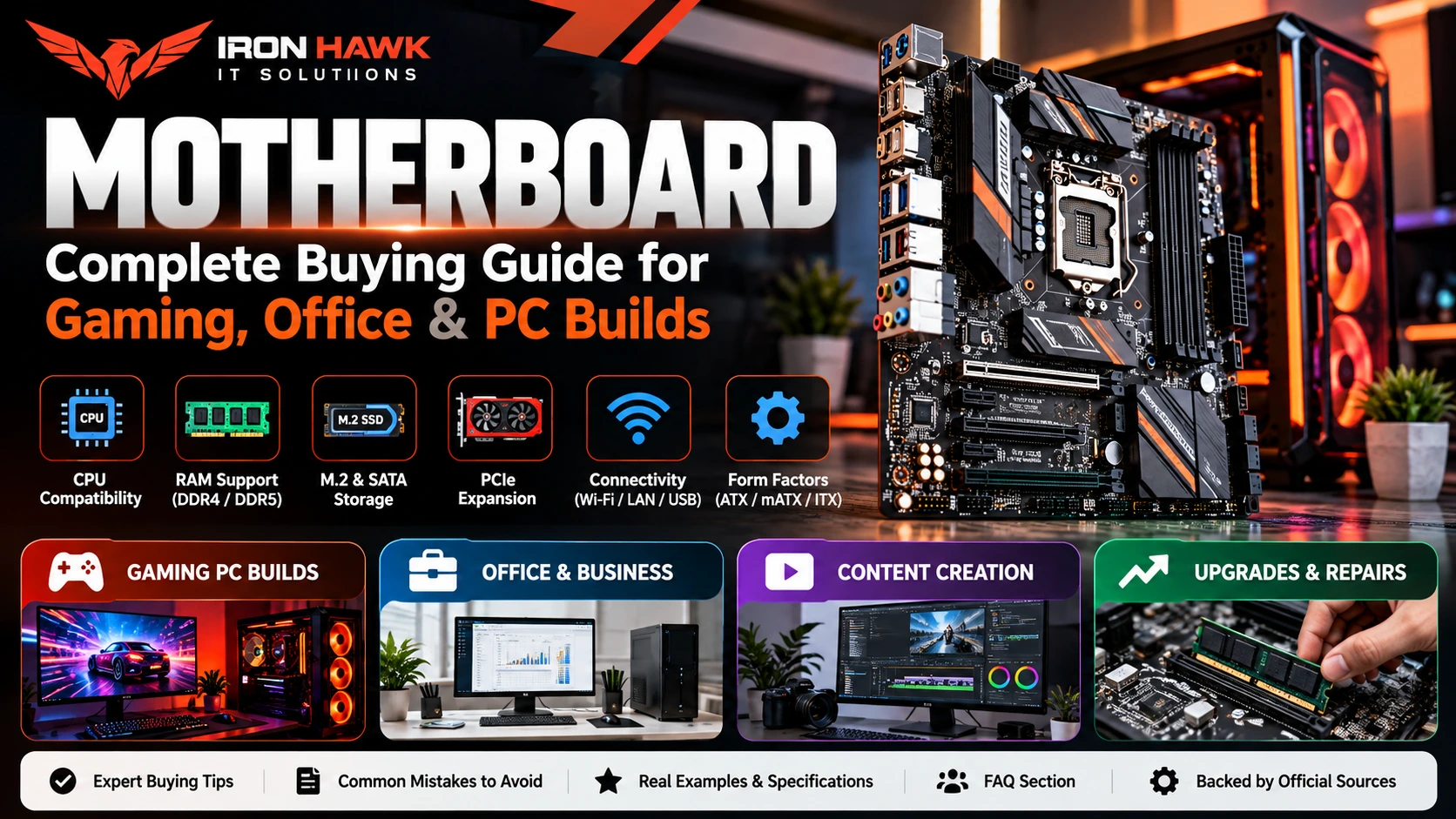
Motherboard: Complete Buying Guide for Gaming, Office & PC Builds
Introduction
The motherboard is one of the most important components in any desktop computer. It connects the processor, memory, graphics card, SSD, power supply, cooling system, networking hardware, and other components into a complete PC.
Choosing the right motherboard, however, requires more than selecting a familiar brand or an attractive design.
A motherboard must be compatible with your processor and should provide the memory support, storage connectivity, PCIe expansion, networking, USB connectivity, cooling headers, and upgrade options required by your system.
For example, an office computer with a single SSD and integrated graphics may need a very different motherboard from a gaming PC equipped with a high-performance GPU, multiple NVMe SSDs, 32GB of RAM, and additional cooling.
In this guide, we explain how a motherboard works, the specifications that matter most, common compatibility mistakes, and how to choose the right motherboard for gaming, office, professional, and everyday PC builds.
Motherboard: What Is It and Why Is It Important?
A motherboard is the primary circuit board inside a computer.
It provides connections between major PC components, including:
- CPU
- RAM
- Graphics card
- NVMe SSD
- SATA SSD/HDD
- Power supply
- CPU cooler
- Case fans
- USB devices
- Networking hardware
- Audio hardware
- Expansion cards
Intel describes the motherboard as the primary circuit board that connects PC hardware to the processor, distributes power, and determines what memory, storage, graphics, and expansion hardware can be connected.
The motherboard therefore determines much of your system's:
Compatibility + Connectivity + Expansion + Upgradeability
A powerful CPU or graphics card cannot compensate for purchasing an incompatible motherboard.
How Does a Motherboard Work?
The motherboard provides pathways that allow components to communicate with the processor and with each other.
A simplified PC configuration looks like this:
CPU → Motherboard → RAM
GPU → PCIe Slot → Motherboard
NVMe SSD → M.2 Slot → Motherboard
PSU → Motherboard + CPU + GPU
USB / Network / Audio → Motherboard I/O
Some hardware communicates more directly with the CPU, while other devices communicate through the platform chipset.
This is why the chipset, CPU socket, PCIe connectivity, memory support, and storage configuration are important when comparing motherboards.
Main Parts of a Motherboard
Understanding the basic components makes motherboard shopping considerably easier.
| Motherboard Component | Main Purpose |
|---|---|
| CPU Socket | Holds and connects the processor |
| DIMM Slots | Install RAM |
| PCIe x16 Slot | Commonly used for graphics cards |
| M.2 Slots | Install NVMe/SATA M.2 drives where supported |
| SATA Ports | Connect SATA SSDs and hard drives |
| Chipset | Manages platform connectivity/features |
| VRM | Helps deliver regulated power to components |
| ATX Power Connector | Main motherboard power |
| CPU Power Connector | Supplies CPU power |
| Fan Headers | Connect cooling fans |
| USB Headers | Connect front-panel USB |
| Rear I/O | USB, networking, audio and display connectivity |
| BIOS/UEFI | Hardware initialization and configuration |
The exact features vary substantially between models.
First-Hand Experience: How We Evaluate a Motherboard
From our experience evaluating PC configurations, we have found that buyers often focus on the motherboard's brand or appearance before checking the specifications that actually determine compatibility.
Our evaluation process starts with the processor and workload.
1. Identify the Exact CPU
We first determine the exact processor model.
We then check:
- CPU socket
- Processor generation
- Compatible chipset
- BIOS support
A motherboard can have excellent specifications and still be useless for a particular build if it does not support the selected CPU.
2. Check RAM Requirements
Next, we determine:
- DDR generation
- Required capacity
- Number of DIMM slots
- Upgrade plans
- Supported memory configurations
For example, someone planning to start with 16GB and upgrade later may prefer a motherboard with additional memory expansion.
3. Check GPU Requirements
For gaming and professional PCs, we evaluate:
- Primary PCIe slot
- PCIe generation
- GPU requirements
- Expansion-card requirements
- Physical configuration
The motherboard must also fit into a cabinet capable of accommodating the selected GPU.
4. Evaluate SSD Requirements
We check how many storage devices the user expects to install.
A basic office computer may require only:
1 × NVMe SSD
A gaming or editing PC could eventually use:
1 × OS SSD + 1 × Game/Project SSD + additional storage
Additional M.2 connectivity can therefore be useful for some builds.
5. Check Power and Cooling
We also consider:
- CPU power requirements
- VRM design
- VRM heatsinks
- CPU fan headers
- Case fan headers
- AIO pump support where required
6. Think About Future Upgrades
Finally, we consider whether the user may later add:
- More RAM
- Additional NVMe SSDs
- A stronger GPU
- Expansion cards
- Faster networking
- More USB devices
- Additional cooling
What We Have Learned
From our evaluation process, we have found that the best motherboard is not necessarily the board with the longest specification list.
The better choice is usually the motherboard that provides the right features for the complete system without forcing the buyer to pay for capabilities they are unlikely to use.
Editorial note: This section describes our configuration-evaluation methodology. It should not be interpreted as a claim that every motherboard mentioned in this guide has been physically tested or benchmarked by our team.
Specific Evidence & Original Data: Motherboard Specification Comparison
To make motherboard comparisons more useful, we recommend recording the important specifications before deciding which model provides better value.
Example Configuration Comparison
| Feature | Mainstream PC | Gaming / Performance PC | Why It Matters |
|---|---|---|---|
| RAM | 16GB | 32GB | Determines multitasking capacity |
| Storage | 1 × NVMe SSD | 2+ NVMe SSDs | More M.2 slots improve expansion |
| GPU | Integrated / mainstream | Dedicated GPU | Requires suitable PCIe connectivity |
| Networking | Ethernet | 2.5GbE / Wi-Fi where required | Affects network options |
| Cooling | Basic fans | Multiple fans / AIO | Requires appropriate headers |
| Expansion | Minimal | Multiple devices | PCIe availability matters |
| Form Factor | Micro-ATX | Micro-ATX / ATX | Influences expansion and case size |
This illustrates why motherboard selection should begin with the complete PC configuration rather than the motherboard alone.
Named Example: ASUS PRIME Z890-P
A real motherboard provides a clearer example of how specifications differ.
According to ASUS's published specifications, the ASUS PRIME Z890-P supports Intel Core Ultra processors (Series 2) on the LGA1851 socket.
Its documented features include:
- Intel Z890 chipset
- Four DDR5 DIMM slots
- PCIe 5.0 x16 primary expansion
- Four M.2 slots
- Four SATA 6Gb/s ports
- 2.5Gb Ethernet
- USB Type-C connectivity
- Multiple fan headers
- BIOS FlashBack
The M.2 configuration is particularly useful as an example.
ASUS documents one M.2 slot supporting PCIe 5.0 x4, while other M.2 slots provide PCIe 4.0 connectivity.
What This Evidence Shows
Compare this with a basic motherboard that might provide fewer M.2 slots, fewer expansion connections, simpler networking, or fewer USB ports.
Both products may be called “motherboards,” but their capabilities can be substantially different.
That is why buyers should compare:
CPU Support + RAM + PCIe + M.2 + Networking + USB + Cooling + Expansion
instead of comparing only the brand name.
CPU Socket: Check This Before Buying
The processor socket is one of the first specifications you should check.
Intel explains that the socket provides the connection between the CPU and motherboard and recommends checking processor documentation to confirm motherboard compatibility.
A processor designed for one socket cannot simply be installed into an unrelated socket.
The basic selection process should therefore be:
Choose CPU → Identify Socket → Identify Compatible Chipset → Compare Motherboards
Never assume that every Intel motherboard supports every Intel processor or that every AMD motherboard supports every AMD processor.
What Is a Motherboard Chipset?
The chipset is another major part of motherboard selection.
It helps manage connectivity between the CPU and components such as:
- Storage devices
- PCIe expansion
- USB
- Networking
- Audio
- Other peripherals
Different chipset families can provide different levels of connectivity and platform features.
A higher-tier chipset may provide additional PCIe connectivity, USB capability, expansion, or enthusiast-oriented functionality.
However:
Higher chipset tier ≠ automatically better choice for every user.
An office computer may not benefit from features designed for an enthusiast gaming system.
ATX vs Micro-ATX vs Mini-ITX Motherboard
Motherboards are manufactured in different physical sizes called form factors.
Three common desktop form factors are:
| Form Factor | Approximate Size | Typical Use |
|---|---|---|
| ATX | 12 × 9.6 inches | Gaming, workstation, expandable PCs |
| Micro-ATX | 9.6 × 9.6 inches | Mainstream and budget PCs |
| Mini-ITX | 6.7 × 6.7 inches | Compact systems |
ATX
ATX motherboards typically provide more physical room for:
- RAM slots
- PCIe expansion
- M.2 storage
- Fan headers
- Additional connectivity
They are popular for gaming and performance systems.
Micro-ATX
Micro-ATX can provide a useful balance between:
Size + Features + Cost
These boards are commonly suitable for office PCs, home computers, and gaming builds that do not require extensive expansion.
Mini-ITX
Mini-ITX boards are designed for compact systems.
Their smaller dimensions can reduce the number of expansion slots available.
However, smaller does not automatically mean cheaper. Premium Mini-ITX motherboards can include sophisticated features despite their compact size.
DDR4 vs DDR5 Motherboard
Memory compatibility is another important consideration.
Depending on the CPU platform, you may encounter motherboards supporting:
- DDR4
- DDR5
The memory type must match the motherboard.
DDR4 and DDR5 modules are not interchangeable simply because both are desktop RAM.
When planning a new PC, compare the total platform cost:
CPU + Motherboard + RAM
rather than looking at the motherboard separately.
How Much RAM Should Your Motherboard Support?
The required memory capacity depends on the workload.
A general planning framework is:
| Usage | Practical RAM Target |
|---|---|
| Basic everyday use | 8GB–16GB |
| Office productivity | 8GB–16GB |
| Gaming | 16GB–32GB |
| Programming | 16GB+ |
| Content creation | 16GB–32GB+ |
| Heavy professional workloads | 32GB+ depending on software |
These are planning ranges rather than universal requirements.
Always check the requirements of the applications you intend to use.
Also consider whether you want additional DIMM slots for future upgrades.
M.2 Slots and NVMe SSD Support
M.2 connectivity has become an important motherboard feature.
M.2 slots can be used for compatible NVMe SSDs and, depending on the slot and board, other supported devices.
Before purchasing, check:
- Number of M.2 slots
- PCIe generation for each slot
- Supported drive sizes
- M.2 heatsinks
- Shared bandwidth limitations
- SATA support
- Expansion plans
A PC using a single SSD may need only one M.2 slot.
A creator or gamer with a large storage library may prefer several.
PCIe Support Explained
PCI Express is used to connect high-bandwidth expansion hardware.
Common examples include:
- Graphics cards
- Storage devices
- Networking cards
- Capture cards
- Other expansion hardware
Newer motherboard platforms may support PCIe 5.0, while older or budget platforms may provide earlier generations depending on the slot and chipset.
Don't purchase based only on the highest PCIe number.
Instead, determine what your actual CPU, GPU, storage, and expansion hardware requires.
Choosing a Motherboard for Gaming
A gaming motherboard should be selected around the complete gaming system.
Processor
Confirm the motherboard supports the exact gaming CPU.
Graphics Card
Check the primary PCIe slot and overall system configuration.
RAM
For many gaming PCs, 16GB–32GB is a practical planning range, although individual games and multitasking requirements vary.
SSD
A gaming system can benefit from NVMe storage, particularly as game libraries become larger.
Cooling
Check:
- CPU fan header
- Case fan headers
- Pump header where required
- Heatsinks
- Cabinet airflow compatibility
Networking
Depending on your setup, useful features may include:
- Gigabit/2.5Gb Ethernet
- Wi-Fi
- Bluetooth
Don't pay extra for wireless connectivity if you know the system will always use Ethernet unless you want the flexibility.
Choosing a Motherboard for an Office PC
An office PC generally has simpler requirements.
Look for:
- Compatible CPU socket
- Suitable chipset
- 8GB–16GB+ memory capability
- NVMe SSD support
- USB connectivity
- Ethernet
- Display outputs where applicable
- Reliable BIOS/driver support
Office systems generally do not need expensive enthusiast features unless a specific workload requires them.
Choosing a Motherboard for Content Creation
Creators may require considerably more expansion.
Consider:
- 32GB+ RAM capability where workloads require it
- Multiple M.2 slots
- Dedicated GPU support
- High-speed USB
- Fast Ethernet
- Wi-Fi where required
- Additional PCIe expansion
- Strong CPU support
- Multiple cooling headers
Video editors and creators handling large project files may particularly benefit from multiple high-speed storage options.
Choosing a Motherboard for Programming
A programming PC does not necessarily require an expensive enthusiast motherboard.
Developers should prioritize:
- CPU compatibility
- Sufficient RAM capacity
- NVMe storage
- Networking
- USB connectivity
- Upgradeability
Users running virtual machines, containers, local databases, or large development environments may want additional RAM and storage expansion.
Motherboard and Windows 11 Compatibility
Operating-system requirements should also be considered when assembling a PC.
Microsoft's Windows 11 documentation specifies requirements including:
- UEFI firmware
- Secure Boot capability
- TPM 2.0
The completed computer must satisfy Microsoft's complete hardware requirements if Windows 11 is going to be installed.
This is particularly important when purchasing older motherboards or building systems from previous-generation hardware.
BIOS and UEFI: Why They Matter
The motherboard firmware initializes the hardware and provides important system configuration options.
Depending on the board, firmware settings can control:
- Boot devices
- Memory settings
- Fan behaviour
- Security
- TPM
- Secure Boot
- Storage configuration
- CPU-related settings
- Firmware updates
BIOS Compatibility Warning
A processor and motherboard having the correct physical socket does not always guarantee immediate compatibility.
Some processor generations may require a particular firmware version.
Before purchasing, check the motherboard manufacturer's official CPU support information.
Motherboard Connectivity Checklist
Before choosing a board, count the connections you actually need.
Rear I/O
Check for:
- USB-A
- USB-C
- Ethernet
- Wi-Fi antenna connections where applicable
- Audio
- DisplayPort/HDMI where required
Internal Connectivity
Check:
- M.2 slots
- SATA ports
- Fan headers
- AIO/pump header
- Front USB headers
- Front USB-C header where needed
- RGB/ARGB headers if required
This prevents discovering after assembly that an important case feature cannot be connected.
Common Motherboard Buying Mistakes
1. Buying Before Selecting the CPU
Start with the processor or at least the processor platform.
2. Checking Socket but Ignoring BIOS Support
Physical compatibility does not guarantee firmware support for every processor.
3. Ignoring RAM Type
Confirm DDR4 or DDR5 compatibility before purchasing memory.
4. Buying Too Few M.2 Slots
Think about future storage requirements.
5. Paying for Features You Don't Need
Premium networking, extreme overclocking features, RGB, and extensive expansion may be unnecessary for basic systems.
6. Ignoring Case Compatibility
Confirm that your cabinet supports the motherboard form factor.
7. Ignoring Fan Headers
A gaming PC with several fans requires suitable fan connectivity or an appropriate controller/hub.
8. Choosing by Appearance
A visually impressive motherboard is not necessarily the best technical choice.
Motherboard Buying Checklist
Before purchasing, verify:
CPU
- [ ] Exact processor model
- [ ] Socket
- [ ] Chipset compatibility
- [ ] BIOS support
Memory
- [ ] DDR4 or DDR5
- [ ] Number of DIMM slots
- [ ] Maximum required capacity
- [ ] Upgrade requirements
Storage
- [ ] Number of M.2 slots
- [ ] M.2 PCIe generation
- [ ] SATA ports
- [ ] Storage expansion
Expansion
- [ ] GPU slot
- [ ] Additional PCIe slots
- [ ] Capture/network cards if needed
Connectivity
- [ ] USB-A
- [ ] USB-C
- [ ] Ethernet
- [ ] Wi-Fi if required
- [ ] Bluetooth if required
- [ ] Audio
Cooling
- [ ] CPU fan header
- [ ] Case fan headers
- [ ] AIO/pump support
- [ ] Heatsinks
Physical Compatibility
- [ ] ATX / Micro-ATX / Mini-ITX
- [ ] Cabinet compatibility
- [ ] GPU and cooler configuration
Purchase
- [ ] Current price
- [ ] Warranty
- [ ] Seller support
- [ ] Return terms
How to Compare Two Motherboards
Use a table instead of comparing products based only on their names.
| Feature | Motherboard A | Motherboard B |
|---|---|---|
| CPU Socket | Compare | Compare |
| Chipset | Compare | Compare |
| RAM Type | Compare | Compare |
| DIMM Slots | Compare | Compare |
| Maximum RAM | Compare | Compare |
| PCIe | Compare | Compare |
| M.2 Slots | Compare | Compare |
| SATA | Compare | Compare |
| Ethernet | Compare | Compare |
| Wi-Fi | Yes / No | Yes / No |
| USB-C | Yes / No | Yes / No |
| Form Factor | Compare | Compare |
| Warranty | Compare | Compare |
| Price | ₹ | ₹₹ |
Then ask:
Does the more expensive board provide features that I will actually use?
If not, the less expensive compatible board may provide better overall value.
Specific Evidence: What Official Documentation Shows
Official motherboard documentation demonstrates why exact specifications matter.
Intel's motherboard guidance identifies CPU socket, chipset, form factor, RAM, M.2 connectivity, PCIe expansion, and I/O as important considerations when choosing a board.
Intel also documents common motherboard dimensions:
- ATX: 12 × 9.6 inches
- Micro-ATX: 9.6 × 9.6 inches
- Mini-ITX: 6.7 × 6.7 inches
The ASUS PRIME Z890-P provides a useful named example of a modern board with:
- LGA1851 processor support
- DDR5
- PCIe 5.0 x16
- Four M.2 slots
- Four SATA ports
- 2.5Gb Ethernet
These documented differences demonstrate why two motherboards can provide very different levels of connectivity and expansion.
Our research observation: Compare the complete specification sheet instead of assuming that two motherboards using the same processor platform offer the same features.
Credible External Sources
Technical information in this article was cross-checked against authoritative documentation.
Intel Motherboard Buying Guide
Intel provides detailed information about CPU sockets, chipsets, motherboard form factors, M.2 connectivity, RAM, PCIe expansion, and motherboard selection.
Recommended external-link anchor: Intel motherboard buying guide
Microsoft Windows 11 Requirements
Microsoft provides official documentation covering TPM 2.0, UEFI, Secure Boot, and other Windows 11 hardware requirements.
Recommended external-link anchor: Windows 11 system requirements
ASUS Motherboard Specifications
Individual motherboard specifications should always be checked on the manufacturer's product page before purchase.
For the named example in this guide, ASUS's PRIME Z890-P documentation provides its PCIe, storage, Ethernet, USB, and other specifications.
Why Buy a Motherboard From Iron Hawk IT Solutions?
Iron Hawk IT Solutions provides PC components and computer hardware for gaming, office, professional, and custom PC configurations.
Before purchasing, compare the motherboard against your:
CPU + RAM + GPU + SSD + Cabinet + Cooling + Connectivity
This helps you choose hardware based on actual compatibility instead of selecting a product based only on brand or appearance.
Looking for the right board for your PC? Shop motherboards at Iron Hawk IT Solutions and choose a compatible option for your gaming, office, or professional build.
Transparency & Editorial Disclosure
This article was prepared by the IronHawk Team to provide practical information about motherboard selection, compatibility, and PC building.
How This Guide Was Researched
Technical recommendations were developed using:
- General PC configuration principles
- Manufacturer specifications
- Intel motherboard documentation
- Microsoft Windows documentation
- ASUS motherboard technical specifications
- Component compatibility considerations
The ASUS PRIME Z890-P is included as a named specification example to demonstrate how buyers can evaluate a real motherboard.
It should not be interpreted as a universal recommendation for every PC.
First-Hand Experience Disclosure
The first-hand section describes our methodology for evaluating computer configurations and matching components according to a user's workload.
We do not claim that every motherboard or component mentioned in this guide has been personally benchmarked or physically tested by our team unless that testing is specifically documented.
Product and Price Disclosure
Motherboard specifications, prices, availability, firmware versions, promotions, and warranties can change.
Always verify the manufacturer's latest specifications and the seller's current product listing before purchasing.
Frequently Asked Questions About Motherboards
1. What is a motherboard?
A motherboard is the primary circuit board connecting the CPU, RAM, graphics card, storage, power supply, networking, cooling, and other computer hardware.
2. How do I choose the right motherboard?
Start with your processor. Identify its socket and compatible chipsets, then compare RAM support, PCIe, M.2 slots, networking, USB connectivity, form factor, cooling support, and upgrade requirements.
3. Does every motherboard support every CPU?
No. Processor compatibility depends on factors including socket, chipset, CPU generation, and BIOS/UEFI support.
4. Which motherboard is best for gaming?
There is no single motherboard that is best for every gaming PC. The right choice depends on the CPU, GPU, RAM, storage, networking requirements, cooling, case, budget, and upgrade plans.
5. Is ATX better than Micro-ATX?
Not automatically. ATX generally provides more physical expansion space, while Micro-ATX can provide enough connectivity for many mainstream and gaming systems in a smaller format.
6. Should I buy DDR4 or DDR5?
The choice depends on your processor platform, motherboard compatibility, budget, existing hardware, and performance requirements.
7. How many M.2 slots should a motherboard have?
A basic system may require only one. Gamers, creators, and professional users planning multiple NVMe SSDs may benefit from two or more.
8. Does the motherboard affect gaming performance?
The motherboard primarily needs to provide appropriate compatibility, power delivery, connectivity, and features for the components being used. Buying a more expensive board does not automatically increase FPS.
9. Can I upgrade my motherboard later?
Yes, but changing the motherboard may also require changing the CPU, RAM, cooling hardware, or other components depending on platform compatibility.
10. Where can I buy a motherboard?
You can explore motherboard and PC component options at Iron Hawk IT Solutions. Before ordering, verify the exact CPU compatibility, chipset, RAM type, M.2 support, PCIe connectivity, warranty, current price, and availability.
Conclusion
A motherboard is the foundation connecting the major components of your PC.
The right motherboard should be selected according to:
CPU + Chipset + RAM + GPU + SSD + PCIe + Networking + Cooling + Cabinet + Future Upgrades
For an office computer, a straightforward board with the necessary memory, SSD, USB, and networking connectivity may be enough.
For gaming and content creation, additional M.2 slots, PCIe expansion, stronger connectivity, additional cooling support, and greater upgrade flexibility may be valuable.
From our configuration-evaluation experience, the most important step is to start with the processor and intended workload before comparing motherboards.
Then verify the exact socket, chipset, BIOS support, RAM type, storage connectivity, expansion capability, form factor, and warranty.
Building or upgrading your PC? Shop motherboards and PC components at Iron Hawk IT Solutions and choose hardware that matches your performance requirements, compatibility needs, and budget.