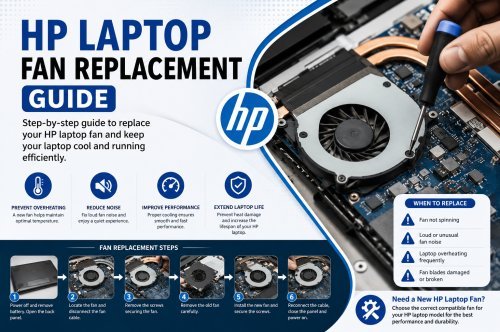
HP Laptop Fan Replacement Guide
HP Laptop Fan: Complete Guide to Problems, Replacement, Compatibility & Buying
If your HP laptop is overheating, making unusual noise, or shutting down unexpectedly, the HP laptop fan could be one of the components you need to inspect. The cooling fan plays an important role in removing heat from the processor and other internal components, helping your laptop maintain stable performance.
However, not every HP laptop uses the same cooling fan. HP Pavilion, HP 15, HP 14, EliteBook, ProBook, Victus, Omen, and other series can use different fan designs, connectors, mounting points, and part numbers. That is why checking compatibility before purchasing an HP laptop fan is essential.
In this guide, we explain everything you need to know about HP laptop fan problems, replacement, compatibility, cleaning, and buying the correct replacement.
What Does an HP Laptop Fan Do?
An HP laptop fan is part of the laptop's cooling system. Its main purpose is to move heat away from internal components.
During normal use, your laptop generates heat from components such as:
- Processor or CPU
- Graphics processor or GPU
- Motherboard components
- Power circuits
- Storage and other internal hardware
The cooling system typically includes a fan, heat sink, heat pipes, and air vents. When the laptop temperature increases, the fan helps push or pull air through the cooling system.
A properly functioning cooling system can help maintain stable performance and reduce the risk of excessive heat buildup.
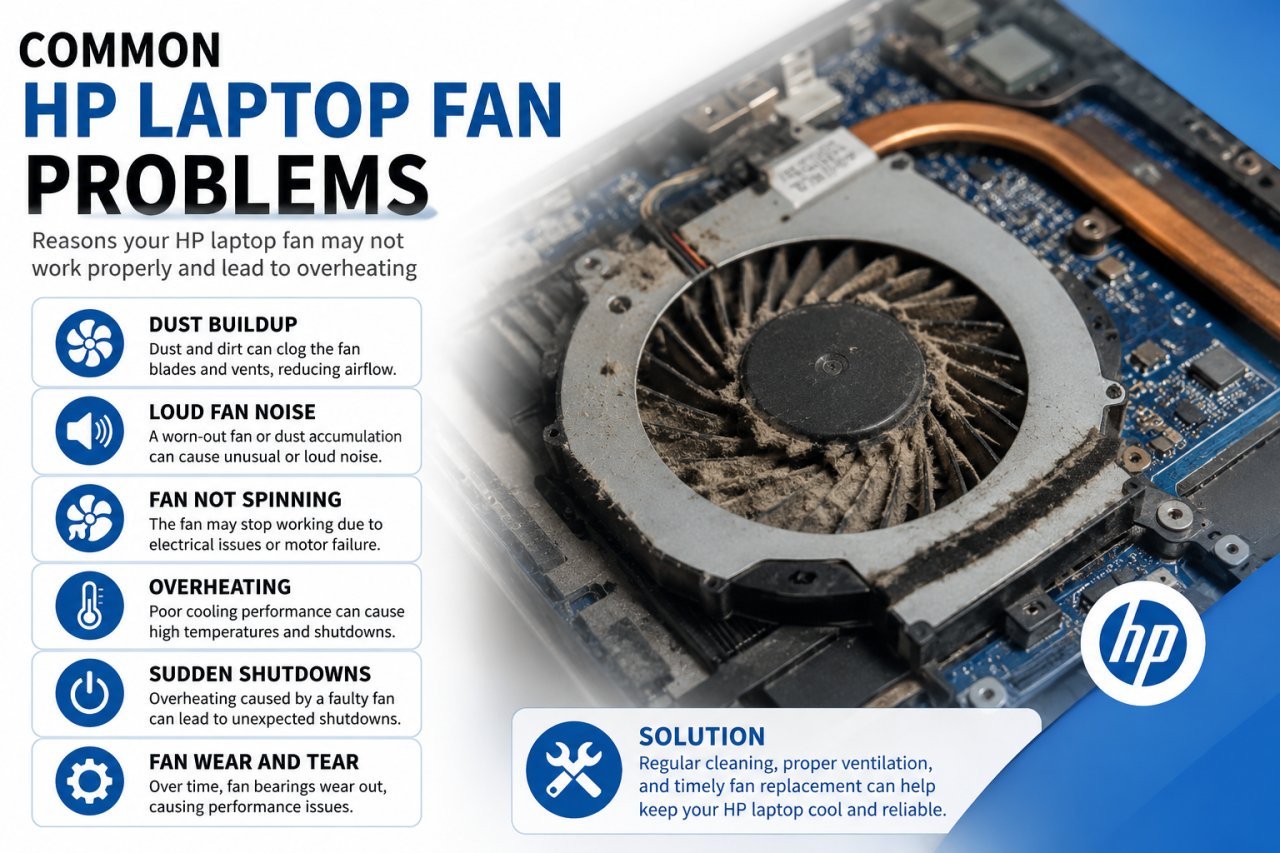
Signs Your HP Laptop Fan May Have a Problem
A faulty or failing HP laptop fan can produce several noticeable symptoms. While these symptoms do not always mean the fan itself is defective, they are worth investigating.
1. HP Laptop Is Overheating
If your laptop becomes unusually hot during normal tasks, gaming, or heavy applications, the cooling system may not be working efficiently.
Possible causes include:
- Dust buildup
- Blocked air vents
- A damaged fan
- A failing fan motor
- Dried or degraded thermal paste
- Heavy CPU or GPU usage
- Software or driver issues
2. Loud Fan Noise
A laptop fan normally becomes louder when the system is under heavy load. However, constant grinding, rattling, clicking, or unusually loud noise may indicate a problem.
Possible causes include:
- Dust inside the fan
- Worn bearings
- Physical damage to the fan blades
- Loose components
- Fan motor failure
3. The Fan Is Not Spinning
If the cooling fan does not spin when required, your laptop may overheat quickly.
Before replacing the HP laptop fan, it is important to check whether the issue is actually caused by:
- The fan itself
- The fan connector
- Motherboard circuitry
- BIOS or firmware
- Temperature sensors
A proper diagnosis can help avoid purchasing the wrong part.
4. Sudden Shutdowns
Some laptops automatically reduce performance or shut down when temperatures become excessively high. If your HP laptop repeatedly shuts down during demanding tasks, overheating should be investigated.
5. Slow Performance Due to Heat
Modern processors can reduce their speed when temperatures become too high. This is often called thermal throttling.
You may notice:
- Slow performance
- Frame drops during gaming
- Applications lagging
- Reduced processing speed
- Performance improving after the laptop cools down
Common HP Laptop Fan Problems
HP laptop cooling problems can occur for several reasons.
Dust and Dirt Buildup
Dust can accumulate around the fan blades, heat sink, and air vents. Over time, this can restrict airflow and reduce cooling efficiency.
Regular cleaning can help maintain airflow. However, internal laptop cleaning should be performed carefully to avoid damaging delicate components.
Worn Fan Bearings
Laptop fans contain moving components that can wear over time. A worn bearing may cause:
- Grinding sounds
- Rattling
- Intermittent operation
- Reduced fan speed
In many cases, replacing the fan is a more reliable solution than attempting temporary repairs.
Damaged Fan Blades
Physical damage to the fan blades can cause imbalance and unusual noise. A damaged fan may also provide reduced airflow.
Connector or Cable Problems
Sometimes the problem is not the fan motor itself. A damaged cable or loose connector can prevent the fan from receiving power or control signals.
How to Choose the Correct HP Laptop Fan
The most important step when buying an HP laptop fan replacement is checking compatibility.
Do not select a fan based only on its appearance.
Check the Exact HP Laptop Model
Look for the complete model number of your laptop. For example, different models within the same product family may use different cooling systems.
Check the information on:
- The bottom label of the laptop
- BIOS or system information
- HP Support documentation
- The original fan label
Check the Fan Part Number
Whenever possible, compare the part number printed on the existing fan with the replacement.
This is often one of the best ways to improve compatibility.
Check:
- Manufacturer part number
- HP spare part number
- Fan model number
- Voltage rating
Check the Connector
Laptop fans may use different connectors and pin configurations.
Before purchasing, verify:
- Number of pins
- Connector shape
- Cable position
- Cable length
A fan that looks similar may still be incompatible.
Check the Physical Design
Compare the:
- Fan diameter
- Screw positions
- Housing shape
- Heat sink design
- Airflow direction
The replacement should match the original cooling assembly.
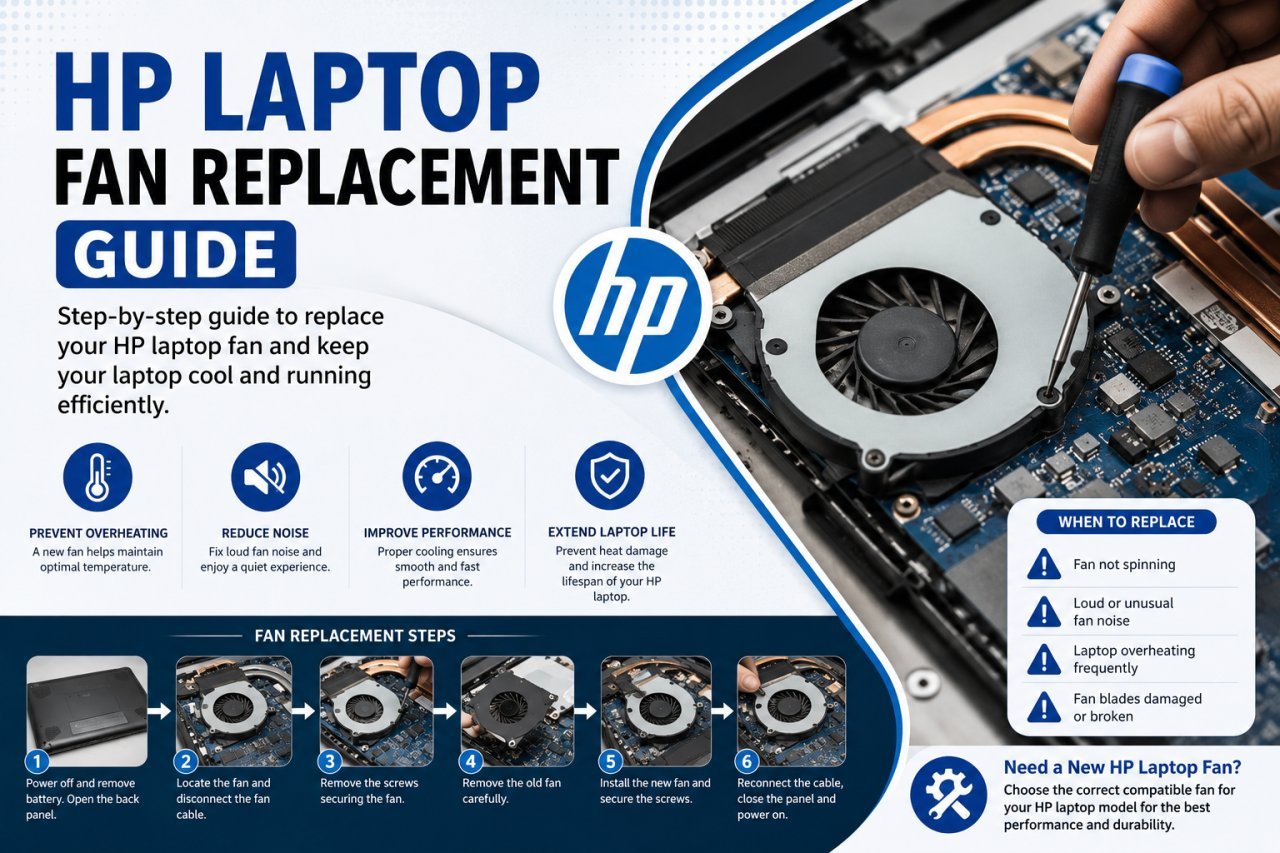
HP Laptop Fan Replacement: Should You Replace It Yourself?
Replacing an HP laptop fan can range from relatively simple to complicated depending on the model.
Some laptops allow easier access to internal components, while others may require removing:
- The bottom cover
- Battery
- Storage components
- RAM
- Heat sink assembly
- Motherboard components
If you do not have experience repairing laptops, professional installation may be the safer option.
Improper disassembly can damage connectors, screws, cables, or other internal components.
HP Laptop Fan Cleaning vs Replacement
Sometimes a replacement is not immediately necessary.
Cleaning May Help If:
- The fan is still spinning normally
- There is excessive dust buildup
- Airflow is blocked
- There is no mechanical damage
- The fan does not make grinding or rattling sounds
Replacement May Be Better If:
- The fan does not spin
- The fan repeatedly stops working
- There is grinding or mechanical noise
- The fan blades are damaged
- The motor is failing
- Cleaning does not resolve the cooling problem
How to Maintain Your HP Laptop Cooling System
You can help maintain your laptop's cooling performance by following a few simple practices.
Keep Air Vents Clear
Avoid using the laptop on soft surfaces such as beds, pillows, or thick blankets that can block ventilation.
Clean Dust Regularly
Dust buildup can reduce airflow. Periodic cleaning can help keep the cooling system working efficiently.
Avoid Excessive Heat
Using demanding applications for long periods can increase internal temperatures. Make sure the laptop has sufficient airflow.
Use the Correct Charger
Use a compatible and properly rated charger. Power-related issues can sometimes contribute to abnormal system behavior.
Monitor Unusual Fan Noise
Do not ignore new grinding, clicking, or rattling sounds. Early inspection may help identify a cooling issue before it becomes more serious.
Why HP Laptop Fan Compatibility Is Important
Installing an incompatible fan can result in several problems, including:
- Incorrect mounting
- Connector mismatch
- Fan not spinning
- Insufficient airflow
- Cable damage
- Improper fit inside the laptop
For this reason, always provide the exact HP laptop model number or the original fan part number before ordering a replacement.
HP Laptop Fan Price in India
The price of an HP laptop fan can vary depending on factors such as:
- Exact laptop model
- Fan part number
- Availability
- Fan design
- Gaming or standard laptop configuration
- Whether the fan is sold separately or as part of a cooling assembly
Gaming laptops and high-performance models may use more advanced cooling designs than standard laptops.
Instead of purchasing a fan based only on the lowest price, focus on compatibility with your specific HP laptop.
Buy the Right HP Laptop Fan from Iron Hawk IT Solutions
Finding the correct HP laptop fan can be difficult because many HP laptop models use different cooling systems and part numbers.
Before purchasing, share your:
- Exact HP laptop model number
- Product number, if available
- Original fan part number
- Clear image of the existing fan, if possible
This helps identify the correct replacement more accurately.
Iron Hawk IT Solutions offers HP laptops and computer-related products, and its website also provides support and product information for customers looking for compatible hardware solutions.
For enquiries and assistance, you can use the Iron Hawk IT Solutions contact page. The website lists contact options and its Secunderabad location.
Buy Your HP Laptop Fan from Iron Hawk IT Solutions
If you are looking for an HP laptop fan replacement, contact Iron Hawk IT Solutions with your exact laptop model or fan part number and check compatibility before purchasing.
Choosing the correct compatible fan is more important than simply choosing the cheapest option. Verify the specifications, connector, mounting design, and part number to help ensure the replacement matches your laptop.
You can also explore available HP laptops through Iron Hawk IT Solutions, which lists multiple HP models and configurations.
Frequently Asked Questions About HP Laptop Fans
1. Why is my HP laptop fan making a loud noise?
Loud fan noise can be caused by dust buildup, high system temperature, worn bearings, damaged fan blades, or demanding applications. If the noise is grinding or rattling, the fan may need inspection or replacement.
2. Can I use any fan in my HP laptop?
No. HP laptop fans are model-specific in many cases. Always check the exact laptop model, fan part number, connector, voltage, mounting points, and physical design before purchasing.
3. How do I know if my HP laptop fan is faulty?
Common signs include unusual noise, overheating, reduced performance, frequent thermal shutdowns, or a fan that does not spin when the laptop becomes hot.
4. Is it better to clean or replace an HP laptop fan?
If the fan works properly but is clogged with dust, cleaning may help. If it has mechanical damage, grinding noise, or does not spin correctly, replacement may be necessary.
5. Can a faulty laptop fan cause overheating?
Yes. A faulty fan can reduce airflow through the cooling system, which may contribute to higher internal temperatures.
6. How do I find the correct HP laptop fan?
Check the exact HP laptop model and, whenever possible, the part number printed on the original fan. Sharing these details with the seller can help confirm compatibility.
7. Can I replace an HP laptop fan myself?
It depends on the laptop model and your repair experience. Some models are relatively easy to open, while others require significant disassembly. If you are unsure, professional installation is recommended.
8. Where can I buy an HP laptop fan?
You can enquire with Iron Hawk IT Solutions about the availability of a compatible HP laptop fan. Provide your exact HP laptop model number or existing fan part number before purchasing.